Find your HubSpot flip-workflow ID
HubSpot only lets tools change a contact's marketing status through a workflow you own. Bill Guard enrolls the contacts you confirm into this workflow — you stay in control, and it's reversible. You need its ID once.
Where the ID lives
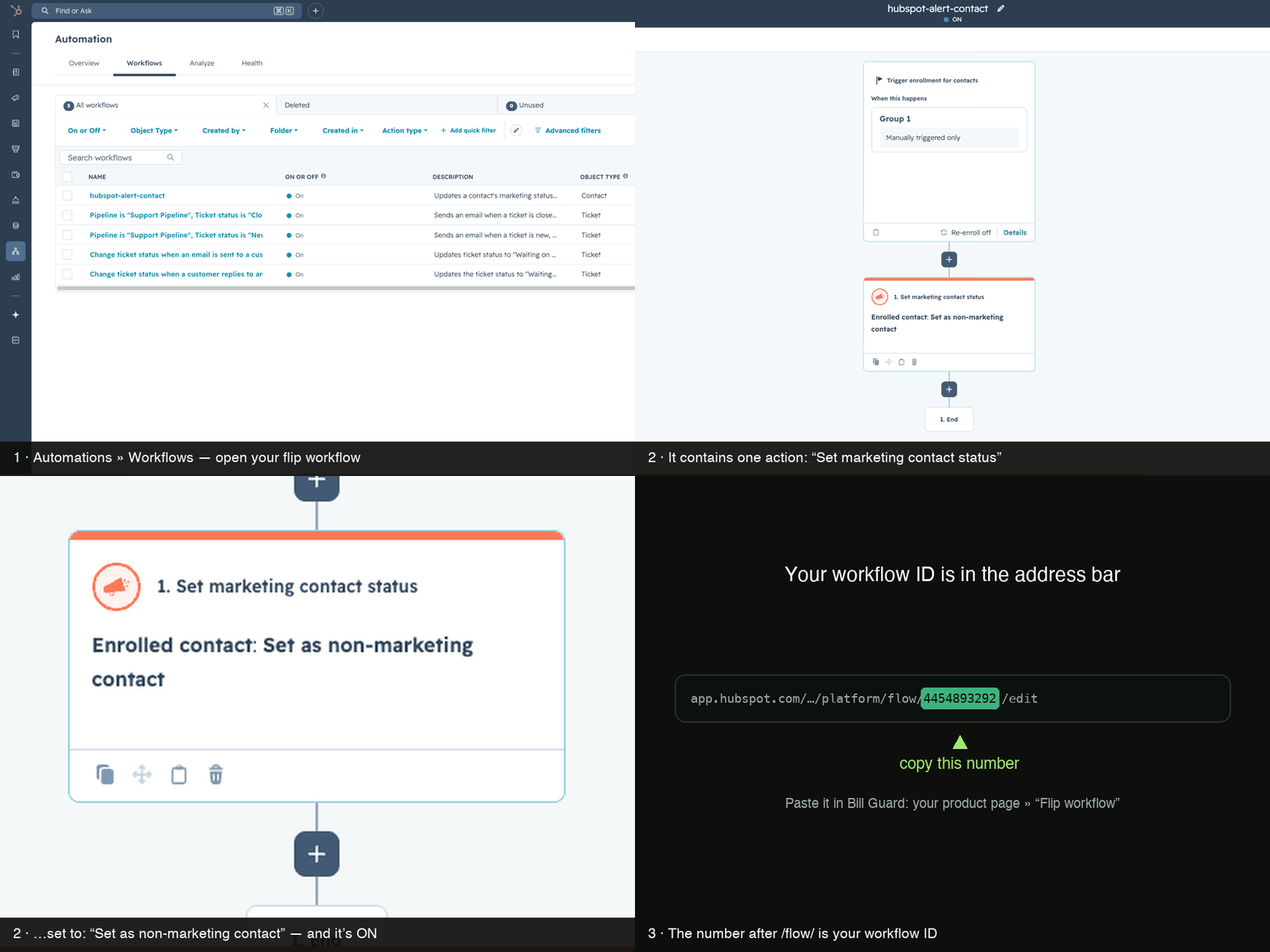
- In HubSpot, open Automations → Workflows.
- Click your Bill Guard flip workflow (the one with the “Set marketing contact status” action).
- The ID is the long number in your browser's address bar, right after /flow/:
Paste it into the flip-workflow field on your product page — we validate it against your portal before saving.
Watch it (20 seconds)
Don't have the workflow yet? Create it (2 minutes)
- Automations → Workflows → Create workflow → From scratch.
- Pick Contact-based → Blank workflow.
- Skip the enrollment trigger (leave it “Manually triggered only” — Bill Guard does the enrolling).
- Add the action “Set marketing contact status” → choose Set as non-marketing contact.
- Name it (e.g. “Bill Guard — set non-marketing”), Review and publish, and make sure it's ON.
Also make sure the private-app token you connected has the automation scope (HubSpot: Settings → Integrations → Private apps → your app → Scopes) — that's what lets us validate the workflow and enroll contacts. Flips take effect on your update date, are reversible in HubSpot, and never delete anyone.